

User management
The Users administration screen lists every user in your organization:
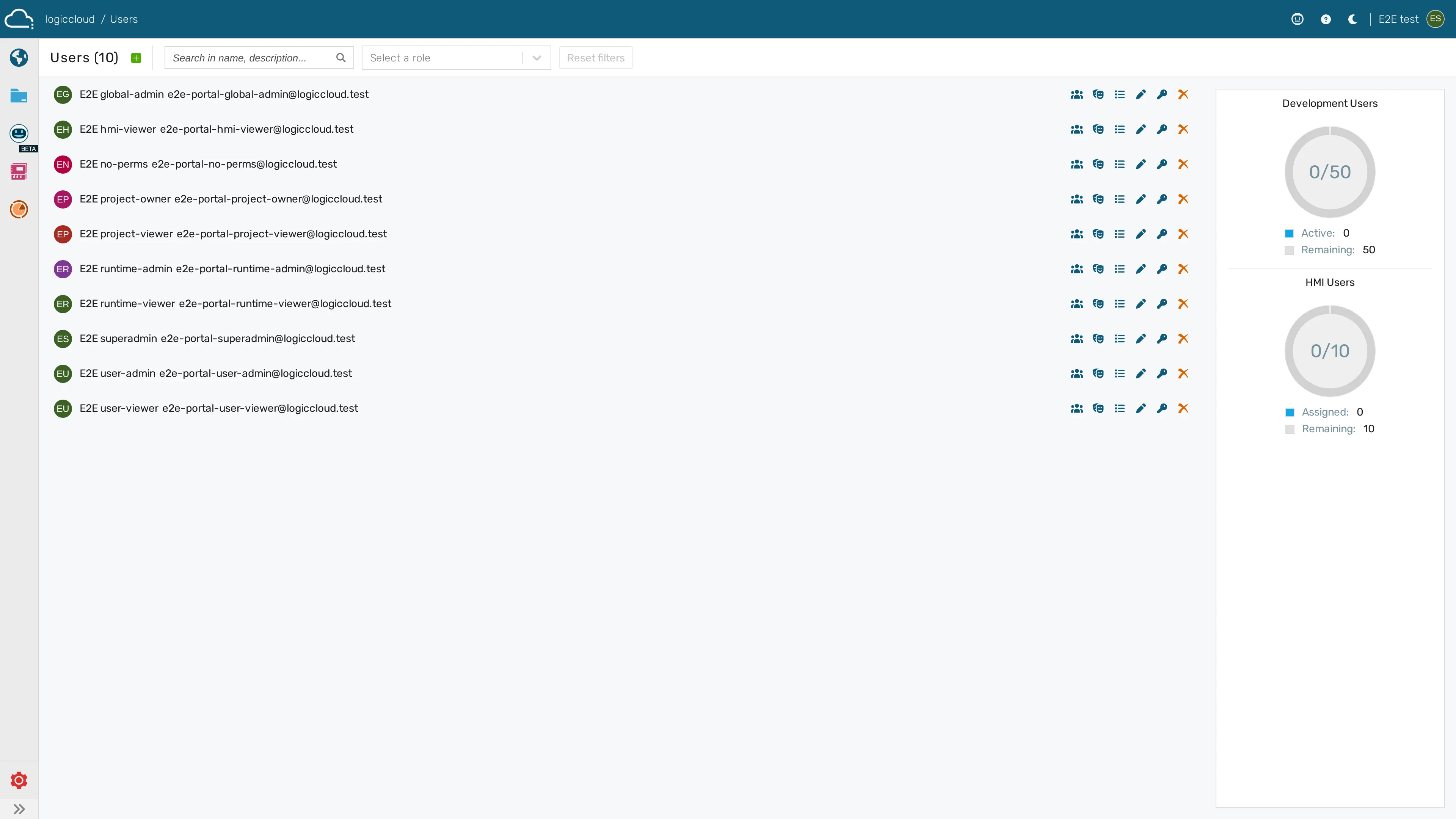
Create user
Section titled “Create user”- Navigate to settings / users.
- Click the + icon in the upper left corner.
- Enter all the information like username, email, first name and last name and select if the user is enabled.
- Click Save.
- Shortly after, the user receives an invitation email with a link to set his password and log in.
Edit user
Section titled “Edit user”- Navigate to settings / users.
- Click Edit user.
- Edit the user information and click Save.
Reset password
Section titled “Reset password”- Navigate to settings / users.
- Click Reset credentials.
- Set the expiration time for the password reset email and click Send email.
- After receiving the email, the user can create a new password and log in again.
Manage sessions
Section titled “Manage sessions”The Sessions section shows you the active sessions for each user.
- Navigate to settings / users.
- Click Sessions.
- You can view the active sessions and log out the user from all sessions if needed. This forces the user to log in again the next time the logiccloud application is opened.
Delete user
Section titled “Delete user”- Navigate to settings / users.
- Click Delete user.
- Confirm the deletion dialog.