

RevPi Troubleshooting
This page lists common problems with a KUNBUS Revolution Pi and logiccloud, and how to solve them. Problems with the browse dialog are described in RevPi Browsing.
Most checks need an SSH connection to the RevPi. See Checking signals with SSH.
Where to find the logs
Section titled “Where to find the logs”The RevPi connector writes its messages to the device log, not to the portal:
- In the portal, open Devices and select the RevPi.
- In Runtime services, find the row
revpi-connector(Revolution Pi Connector). - Set the log level to Debug or Trace if you need more detail.
- Click the log icon in the Actions column of this row.
With the log level Trace, a working connector writes a line for every poll with the values that it read.
Enter Read RevPi values in Filter to show only these lines:
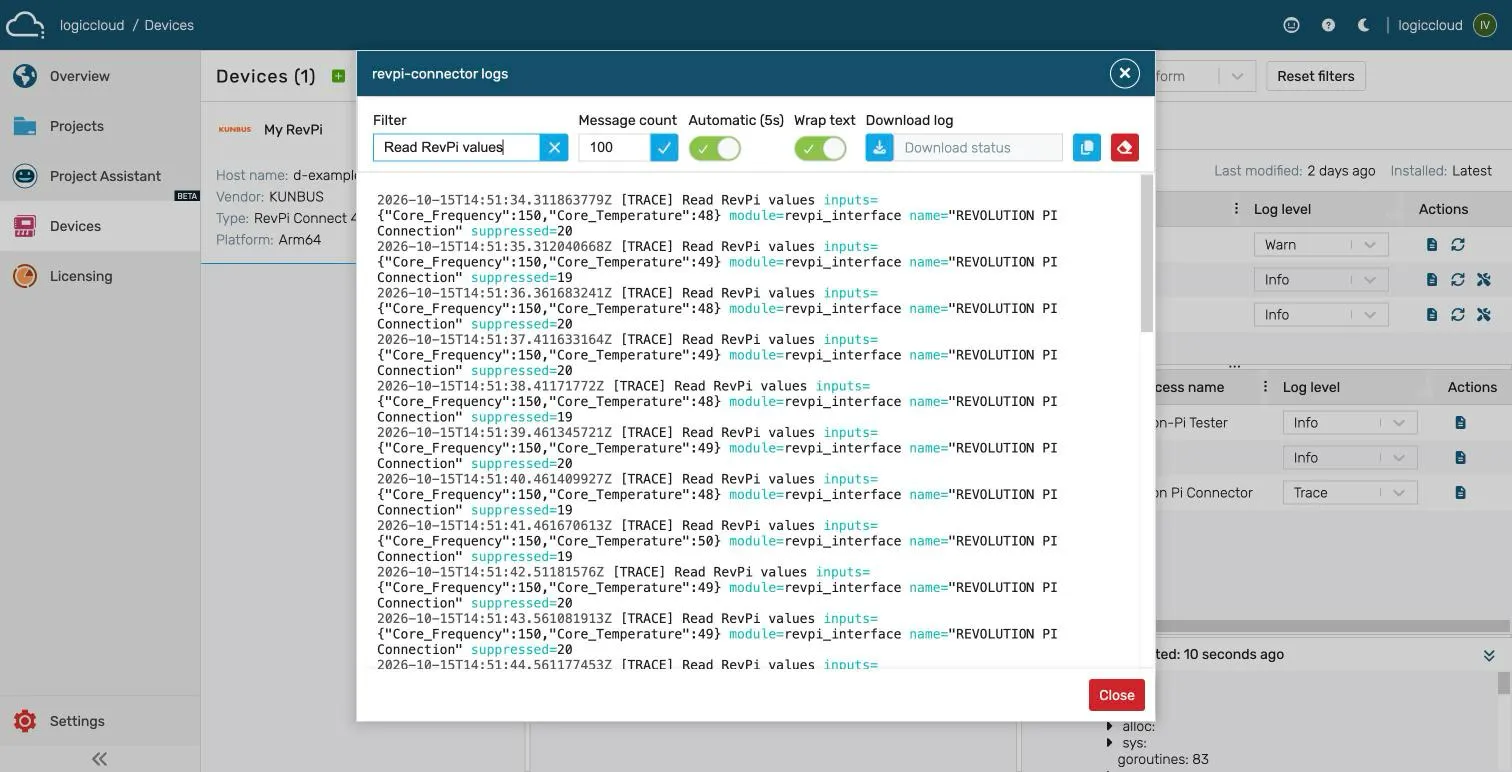
If these lines show the expected values but logiccloud does not, check the mapping of the PLC variable. If the lines are missing, check the error messages in the log, see the following sections.
See logiccloud Control for the log functions.
Quick check
Section titled “Quick check”Run these commands on the RevPi. Each one must give the expected result.
| Check | Command | Expected result |
|---|---|---|
| Driver loaded | lsmod | grep piControl | A line that starts with piControl |
| Device node present | ls -l /dev/piControl0 | A character device (crw-...) |
| Configuration present | ls -l /etc/revpi/config.rsc | A file or a link to _config.rsc |
| Modules detected | piTest -d | Module is present for every module |
| Signal known | piTest -v <name> | Offset, length and bit of the signal |
| logiccloud Control running | docker ps | A container named logiccloud |
A module shows NOT CONFIGURED
Section titled “A module shows NOT CONFIGURED”Symptom: piTest -d shows NOT CONFIGURED for one or more modules. The signals of these modules are not available.
Cause: The PiCtory configuration does not contain the module at this position, or no configuration was saved.
Solution:
- Open PiCtory.
- Place the modules in the same order as on the DIN rail. See Place the modules.
- Select File > Save as Start-Config.
- Select Tools > Reset Driver.
- Run
piTest -dagain.
A mapping has no value
Section titled “A mapping has no value”Symptom: A mapped variable keeps its initial value in logiccloud. Other mappings of the same connection work.
The connector skips a mapping that it cannot use, and it continues with the other mappings. The revpi-connector log shows the reason:
| Log message | Cause | Solution |
|---|---|---|
Could not resolve PiCtory variable, skipping mapping | The driver does not know the PiCtory variable name. It is misspelled, or it was renamed in PiCtory. | Check the name with piTest -v <name>. Correct the mapping, or select the signal with Browse. |
Skipping mapping: configured data type does not match the width reported by piControl | The bit length of the Type does not match the signal. | Select a type with the bit length of the signal. The log lists the matching types in matchingDataTypes. |
Skipping mapping with unsupported data type | The type is not supported by the RevPi connector. | Select one of the types in Mapping process variables. |
Names are case-sensitive. core_temperature does not match Core_Temperature.
Values are wrong after a PiCtory change
Section titled “Values are wrong after a PiCtory change”Symptom: After a change in PiCtory, logiccloud reads values from the wrong signal, or a renamed signal does not work.
Cause: The driver and the connector still use the old configuration. The driver loads the configuration at a driver reset. The connector finds the signals when it starts.
Solution:
- In PiCtory, select File > Save as Start-Config.
- Select Tools > Reset Driver, or run
sudo piTest -x. - In the portal, open the device and click Restart in the Actions section.
- Check the signal with
piTest -v <name>.
The connector reports that the RevPi device is not available
Section titled “The connector reports that the RevPi device is not available”Symptom: The revpi-connector log shows RevPi device not available yet, will retry or Cannot poll inputs, RevPi device unavailable. No RevPi value changes.
Cause: The connector cannot open the piControl driver (/dev/piControl0).
Solution:
- Check the driver on the RevPi:
lsmod | grep piControlandls -l /dev/piControl0. - If the driver is missing after a kernel update, restart the RevPi.
If it is still missing, check that the package is installed:
dpkg -l picontrol. Install it again withsudo apt install picontrolif necessary. - If the driver is present, the logiccloud Control container may have been created without access to it.
This happens when logiccloud Control was installed before the RevPi driver was available.
Run the installation script
linux-setup.shagain. See logiccloud Control.
The connector tries again in every poll cycle. When the driver is available, the log shows RevPi device is available again.
Outputs change without a PLC write
Section titled “Outputs change without a PLC write”Symptom: An output switches although the PLC program does not write it, or the value written by logiccloud is overwritten.
Cause: Another program writes to the same output. piControl has no write protection between programs. The last write in a cycle wins.
Typical other writers:
piTest -wcommands, for example a test loop in an SSH session.- RevPiPyLoad with a Python program.
- Node-RED flows with RevPi nodes.
- A second logiccloud connection that maps the same output.
Solution:
- Stop all test commands in SSH sessions.
- Check RevPiPyLoad:
systemctl status revpipyload. If it is not needed, switch RevPiPyLoad off in Cockpit under Revolution Pi > Runtimes. - Check Node-RED flows and other programs on the device.
- Make sure that each output is mapped as
outputin only one connection.
An analog value is always 0 or does not match the sensor
Section titled “An analog value is always 0 or does not match the sensor”Symptom: An input of a RevPi AIO module shows 0 or an unexpected value. An analog output does not change.
Cause: The range of the channel does not match the wiring. The AIO module uses the ranges from the PiCtory configuration.
The analog outputs are Off by default: an output with the range Off does not drive a signal, whatever value logiccloud writes.
Solution:
- In PiCtory, select the AIO module.
- In the Value Editor, set the range values (
MEMsignals such asInput1RangeandOutput1Range) to match the sensor and the wiring. Check also the scaling values (Input1Multiplier,Input1Divisor,Input1Offset). See Analog modules for the options. - Save the configuration, reset the driver and restart the runtime.
- Compare the value with
piTest -r InputValue_1.
LEDs show the wrong colour
Section titled “LEDs show the wrong colour”Symptom: A value written to RevPiLED switches another colour or another LED than expected. For example, on a RevPi Connect 4, the value 1 switches A1 red instead of green.
Cause: The bit layout of RevPiLED depends on the base module. The RevPi Connect 4 uses 3 bits per LED (red, green, blue). Older RevPi Connect models use 2 bits per LED.
Solution: Use the values for your base module. See LED values for the RevPi Connect 4.
A signal exists but does nothing
Section titled “A signal exists but does nothing”Symptom: A signal can be read and written, but nothing happens at the terminals.
Cause: Some modules share one signal layout. The RevPi DI and the RevPi DO show the full signal set of the RevPi DIO, but only half of the signals have hardware behind them. For example, the output signals of a RevPi DI and the counter signals of a RevPi DO have no function.
Solution: Map only signals that exist on the hardware. See the KUNBUS documentation of the module.
Signal names end with _i03 or a similar suffix
Section titled “Signal names end with _i03 or a similar suffix”Symptom: Signals have names such as InputMode_1_i03 instead of InputMode_1.
Cause: Signal names must be unique on the device. When two modules have signals with the same name, PiCtory adds a suffix to the names of the second module.
Solution: Use the names as they are, or rename the signals in PiCtory. After a rename, follow Values are wrong after a PiCtory change.
PiCtory or Cockpit does not open
Section titled “PiCtory or Cockpit does not open”Symptom: The browser cannot open https://<device-ip>.
Solution:
- Check the IP address of the RevPi in your router or DHCP server. The address can change after a restart. Configure a fixed address or a DHCP reservation for the RevPi, see Set a fixed IP address.
- Check the network connection:
ping <device-ip>. - Accept the browser warning for the self-signed certificate.
- Log in with the user
piand the password from the sticker on the housing.
sudo asks for a password
Section titled “sudo asks for a password”On the RevPi Bookworm image, sudo asks for the password of the pi user. Scripts that use sudo without a password do not work there. Enter the password from the sticker, or run such scripts interactively.
The device does not start after a power loss
Section titled “The device does not start after a power loss”Cause: Switching off the 24 V supply while the RevPi runs can damage the file system on the internal storage.
Solution: Always shut down the RevPi before you switch off the power: in Cockpit, or with sudo shutdown -h now. If the device does not start, contact KUNBUS support for the recovery procedure of your base module.