

Devices
To run the runtimes, they need to be added to a device. Devices in logiccloud act as digital twins that can either be mapped to hardware devices when using logiccloud control, or to virtual devices when using logiccloud 365 runtimes. A logiccloud device allows you to manage and monitor the logiccloud control installation running on the actual device.
The devices can be managed by clicking on the main navigation bar on the devices icon. This will bring up the list of accessible devices
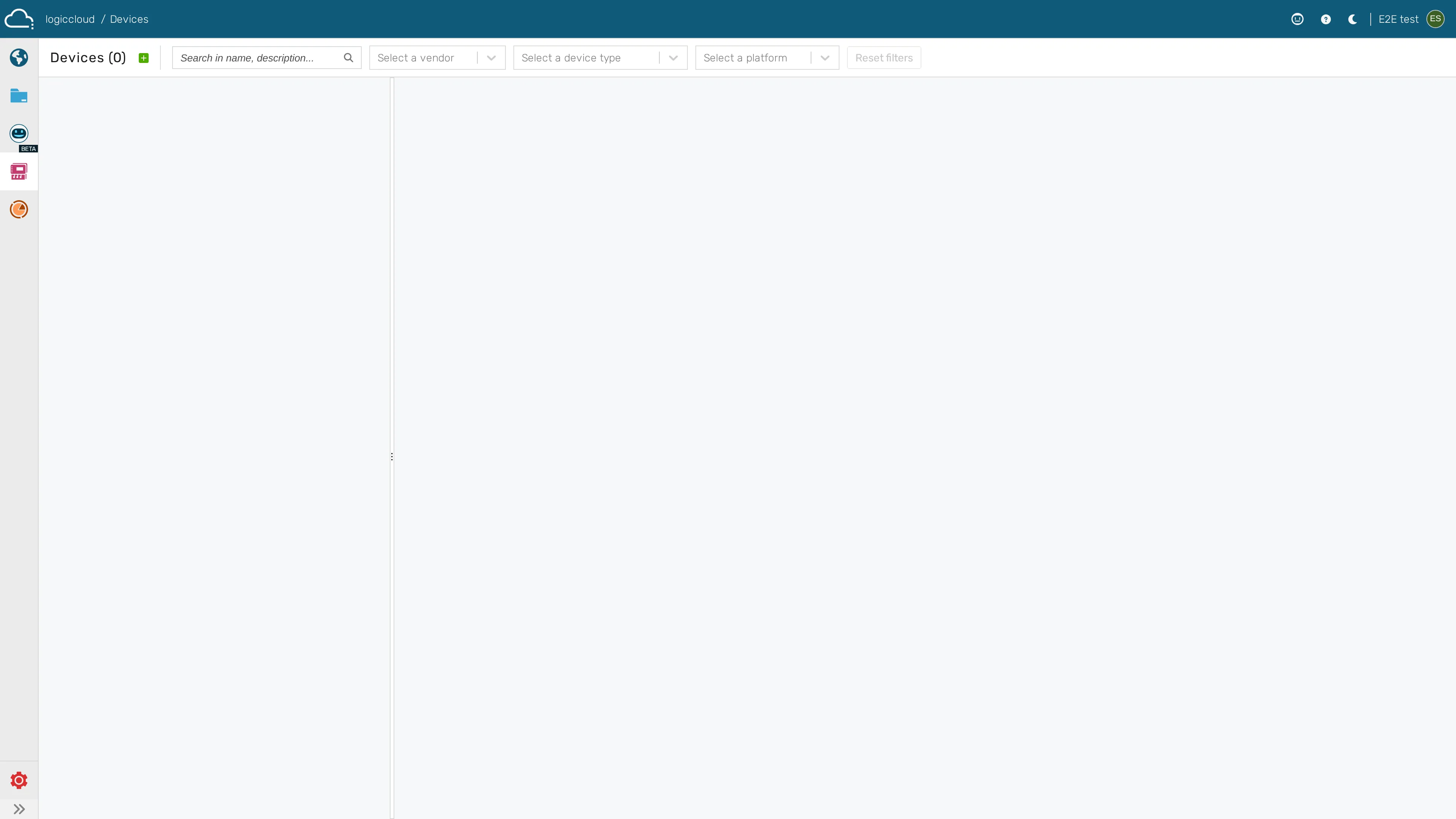
The devices list contains all defined devices and the top bar can be used to add new devices, or filter the list.
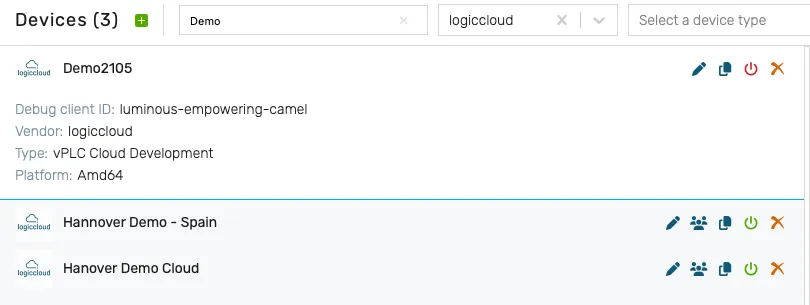
Depending on the device type, the options in the list can vary. Below are the toolbar icons and their associated meaning:
 copy the device token to perform device binding
 edit the logiccloud 365 device information or the logiccloud control device information
 create a copy of the device
 edit the logiccloud 365 device HMI users
 indicates that the logiccloud 365 device is powered on; clicking on this button will shut down the virtual device (see Powering on/off devices)
 indicates that the logiccloud 365 device is powered off; clicking on this button will power on the virtual device (see Powering on/off devices)
 deletes the device from the system (see Deleting devices)
Adding or editing devices
Section titled “Adding or editing devices”To add a new device, the first step is to click on the add button in the devices toolbar:

This will open up the add device dialog, where the device manufacturer, type and details can be entered. Depending on the device manufacturer and type, different options are available:
Device manufacturer
Section titled “Device manufacturer”logiccloud devices are virtual devices that run directly in the cloud:
- vPLC Cloud Development - development device that will run in demo mode for two hours, then stop. Development vPLCs will automatically be shut down after 24 hours of inactivity.
- vPLC Cloud S1/S2/S3/S4 - production-grade virtual devices that run in the cloud. The difference between the device types is in the amount of reserved cloud resources. S1 instances are the smallest, while S4 instances have the highest resource allocation and are targeting processes with highly complex or heavy processing.
The other devices correspond to approved manufacturer devices. Depending on the hardware type, the correct device type must be selected, as certain vendors require special handling on the edge.
If the target device is not in the provided list, the Generic devices can be used instead
For more details on the supported hardware platforms and installation procedures check the approved devices list.
Deleting devices
Section titled “Deleting devices”Devices can be deleted from the list, but the deletion behavior is different depending on the device type.
- logiccloud vPLC devices will be completely deleted, together with their resources.
- Non-virtual devices (all except logiccloud) will be deleted from the environment and their logiccloud control will be reset. The edge container and files must be manually removed for a complete cleanup.
Powering on/off devices
Section titled “Powering on/off devices”The Power ON/OFF functionality is only available for virtual devices (vPLC). When a device is powered off, its resources are completely released. S-level vPLC devices can be powered OFF manually, while vPLC Development devices will be automatically powered off after 24 hours of inactivity.
In this section
Section titled “In this section”- logiccloud 365 — Set up and manage virtual (cloud) vPLC devices.
- logiccloud Control — Create, bind and manage edge (hardware) devices running logiccloud control.
- Device service auto-update — How an edge device keeps its built-in services up to date, and how to watch or recover an update from the portal.
- Configuring an outbound proxy on the edge — Route an edge device’s connection to logiccloud through a corporate HTTPS proxy.
- Enable the hardware serial port on Raspberry Pi — Free the Raspberry Pi serial port for use by the runtime.