

INSYS MRX
The Insys MRX has its own interface that you can use to install containers. To do this, go to the user interface of your device and log in. You can now create a new container under the Container menu item. To do this, you must first upload the container. Please click on the Upload Container Icon and upload the container, which you can download here:
logiccloud Control for INSYS MRX
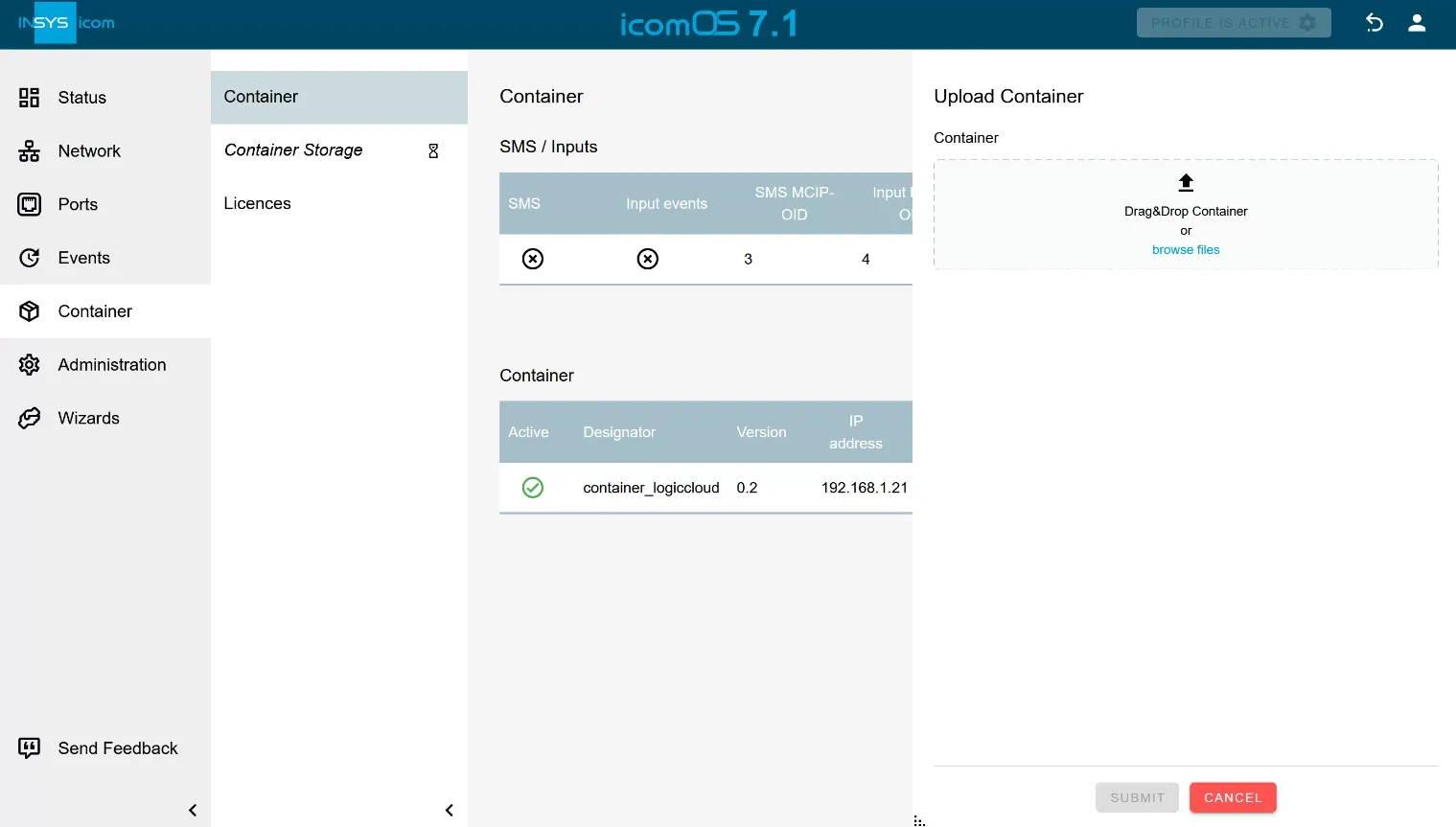
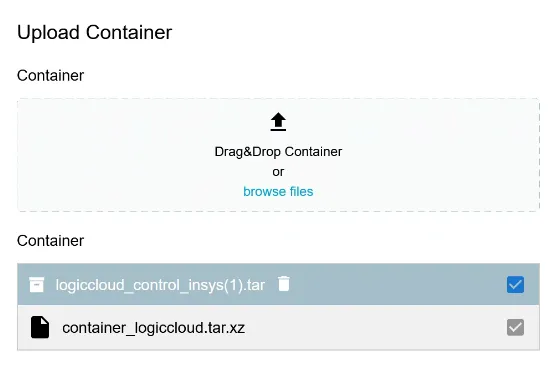
Click on Submit to upload the container.
You can then edit the container. To do this, click on the Edit container icon. You can now make the following settings:
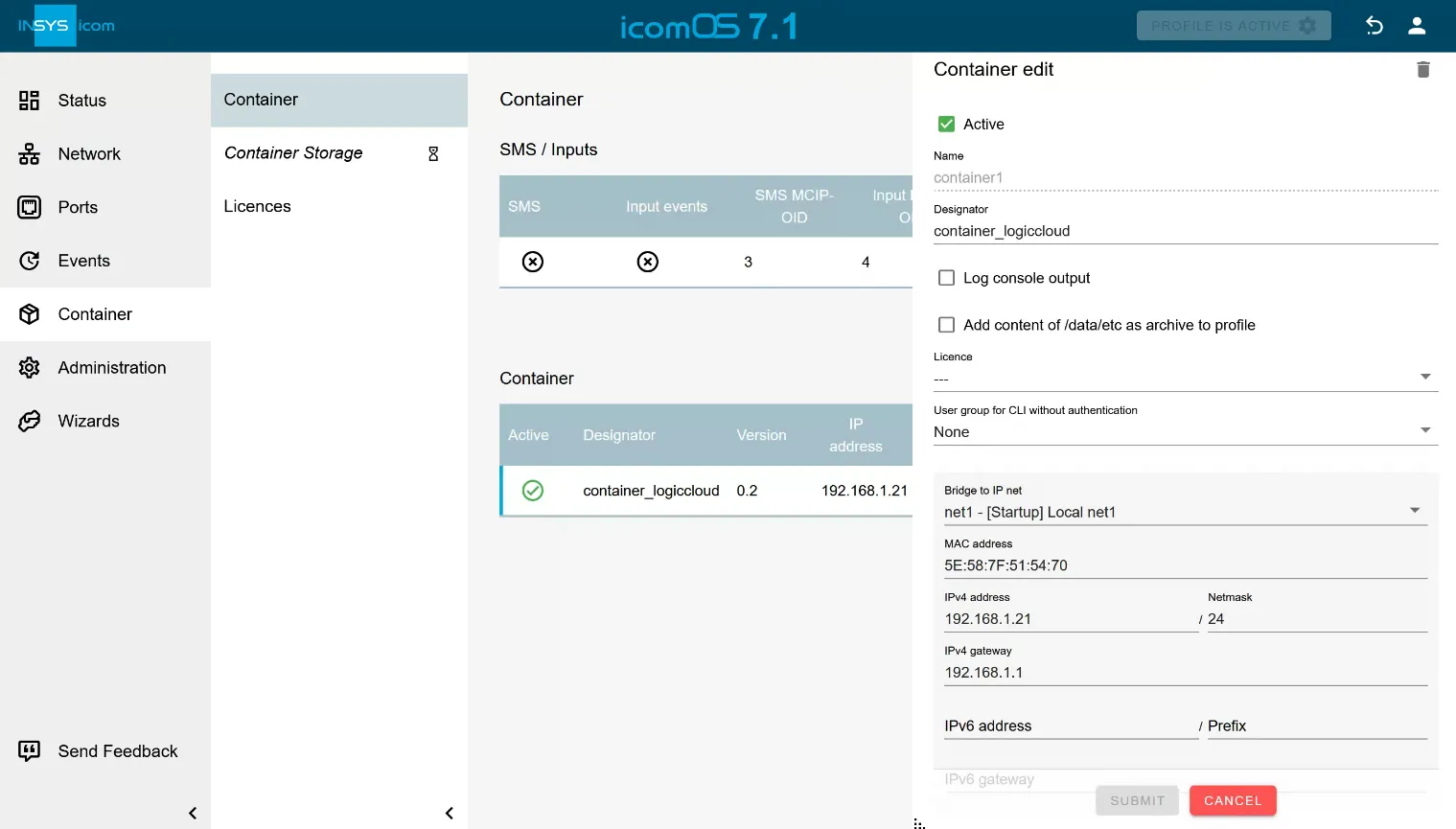
- Bridge to IP net
net1 - [Startup] Local net1(example, as our device only has one network.)- MAC address:
00:00:00:00:00:00(automatic) - IPv4 address:
192.168.1.21(example, as our device has the IP address192.168.1.1). - IPv4 netmask:
24 - IPv4 gateway:
192.168.1.1(corresponds to the IP address of the device)
Then save the configuration and click on ‘Activate profile’ in the top right-hand corner to apply the changes.
Install logiccloud Control
Section titled “Install logiccloud Control”The installation interface can be found under the container IP, in our example 192.168.1.21. There you can now connect your device to the cloud and install the runtime. You can find the instructions here: install logiccloud control.